At the end of each month, Microsoft releases a new Power BI update. Some updates are small, but this one includes several changes that genuinely improve daily work with reports.
In this post, I focus on the features that I consider the most practical and impactful, especially if you build and maintain reports regularly.
Input slicer is now generally available (formerly Text slicer)
The Input slicer, previously known as the Text slicer, is now generally available and ready for production use. This visual allows users to type values directly instead of selecting them from a predefined list.
Traditional slicers work well with a limited number of values, such as country or category. However, they become inefficient when working with thousands of records, such as customer IDs, ticket numbers, or invoice identifiers. Scrolling through large lists is slow and makes analysis less efficient.
With the Input slicer, users can type the value directly. For example, if the slicer is connected to the Customer ID column and the user enters 100234, Power BI immediately filters the report to show only matching records.
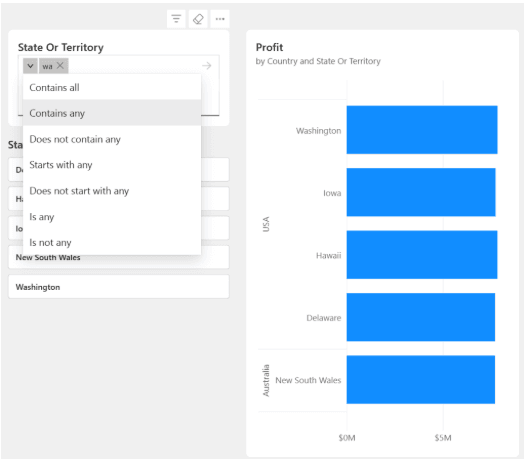
With general availability, Microsoft also introduced more filtering options. Report consumers can now choose from:
- Contains any
- Contains all
- Does not contain any
- Starts with any
- Does not start with any
- Is any
- Is not any
These options provide more flexibility and allow more precise filtering directly within the slicer.
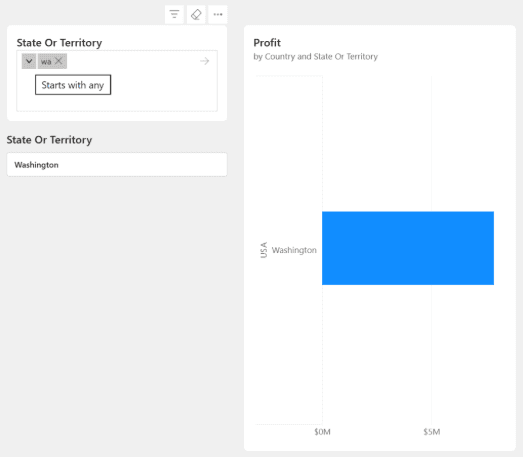
The Input slicer works with text and numeric columns, making it suitable for IDs, names, and other business identifiers. This makes it especially useful in enterprise models with large datasets.
Paste values directly into the slicer
Another important improvement is the ability to paste values directly into the slicer.
Users can copy a list of values from Excel and paste them into the Input slicer. Power BI will automatically filter the report based on the matching values.
For example, if a user copies the following list from Excel:
1001
1002
1003
1004
and pastes it into the slicer connected to the CustomerID column, Power BI will filter the report to show only those customers.
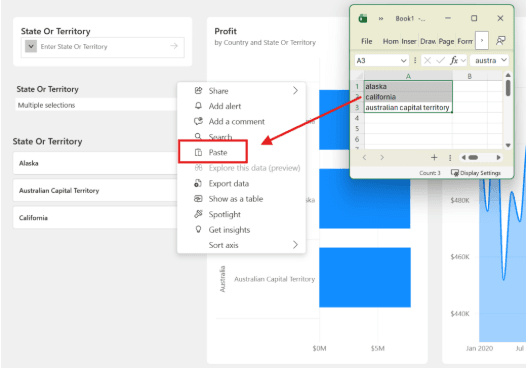
It is important to note that pasted values must exist in the column used by the slicer. Power BI will ignore values that do not exist in the dataset. This ensures accuracy and prevents invalid filtering.
This feature significantly improves workflows where business users provide lists of identifiers from Excel and analysts need to quickly analyze those records in Power BI.
Conditional formatting dialog improvements
Conditional formatting is widely used to highlight trends, thresholds, and key values in reports. Microsoft improved the conditional formatting dialog to make it easier and more reliable to use.
One of the main improvements is a wider dialog window, which makes it easier to view and select fields, especially in models with many measures and columns.
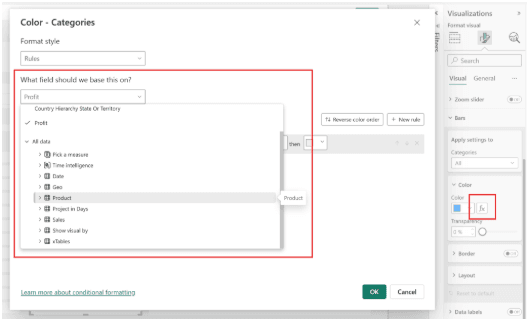
Field selection is now clearer and easier to navigate. This reduces the time needed to find the correct measure and lowers the risk of selecting the wrong field.
Card visual updates and interactive filtering
The Card visual has also been enhanced with improved layout and interactivity.
Card visuals are commonly used to display KPIs such as total sales, profit, number of customers, or number of tickets. With this update, the Card visual can display multiple KPI values more effectively and supports improved interactions.
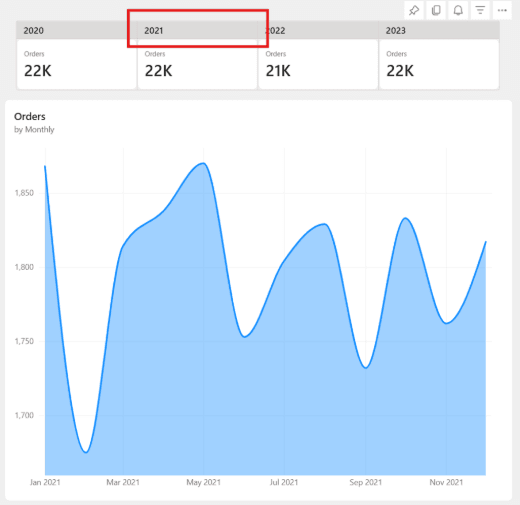
One of the most important improvements is that users can now click a Card visual to filter other visuals on the report page. This means the Card visual can act not only as a KPI display but also as an interactive filtering element.
For example, clicking a KPI can update charts, tables, and other visuals to show only relevant data. This improves report navigation and makes reports more interactive.
Org Apps now remember user filters (Preview)
Power BI Apps now support persistent filters. This means filters and slicers remain applied between sessions.
When users return to a report, they see it in the same state as when they last opened it. This improves the experience for business users who regularly work with the same filtered views.
New DAX functions: NAMEOF and TABLEOF
Microsoft introduced new DAX functions called NAMEOF and TABLEOF.
These functions allow developers to reference tables and columns in a way that is more resilient to renaming. If a table or column name changes, references using these functions update automatically.
This improves model stability and reduces maintenance effort, especially in larger models.
Copilot prompt limit increased to 10,000 characters
Microsoft increased the Copilot prompt limit from 500 to 10,000 characters.
This allows users to provide more context and ask more detailed questions. Copilot can now better understand business scenarios and generate more accurate insights.
Summary
This update introduces several practical improvements that enhance usability, report interaction, and model stability.
The most impactful improvements include:
- Input slicer general availability and advanced filtering options
- Ability to paste values directly into slicers
- Improved conditional formatting dialog and error handling
- Enhanced Card visual with interactive filtering
- Persistent filters in Power BI Apps
- New DAX functions NAMEOF and TABLEOF
- Increased Copilot prompt limit
You can find the full list of changes in the official Microsoft article:
Power BI February 2026 Feature Summary | Microsoft Power BI-blogg | Microsoft Power BI
Images used in this article come from Microsoft’s official update materials.
The remaining features and technical details are described in the Microsoft blog post.